IPTV on Hisense TV and TCL TV: Check Your System First
Hisense and TCL sell TVs with several different systems inside, so the steps for IPTV on Hisense TV models depend on which one you have. The same is true for TCL.
The good news: once you know your system, setup is quick. This page shows you how to find out in ten seconds, then points you to the right steps.
- SetupEasy
- Time5 to 15 minutes
- 4KYes, on 4K models
- ConnectionEthernet on most models
What You Need Before You Start
- Your TV remote and two minutes to check the system
- An account for your TV’s app store (Google, Amazon or the TV maker)
- Your login details from us, sent once you choose a plan
How to Find Your System and Set Up IPTV on Hisense TV or TCL TV
Press Home on your remote and look at the screen. Then follow the matching step.
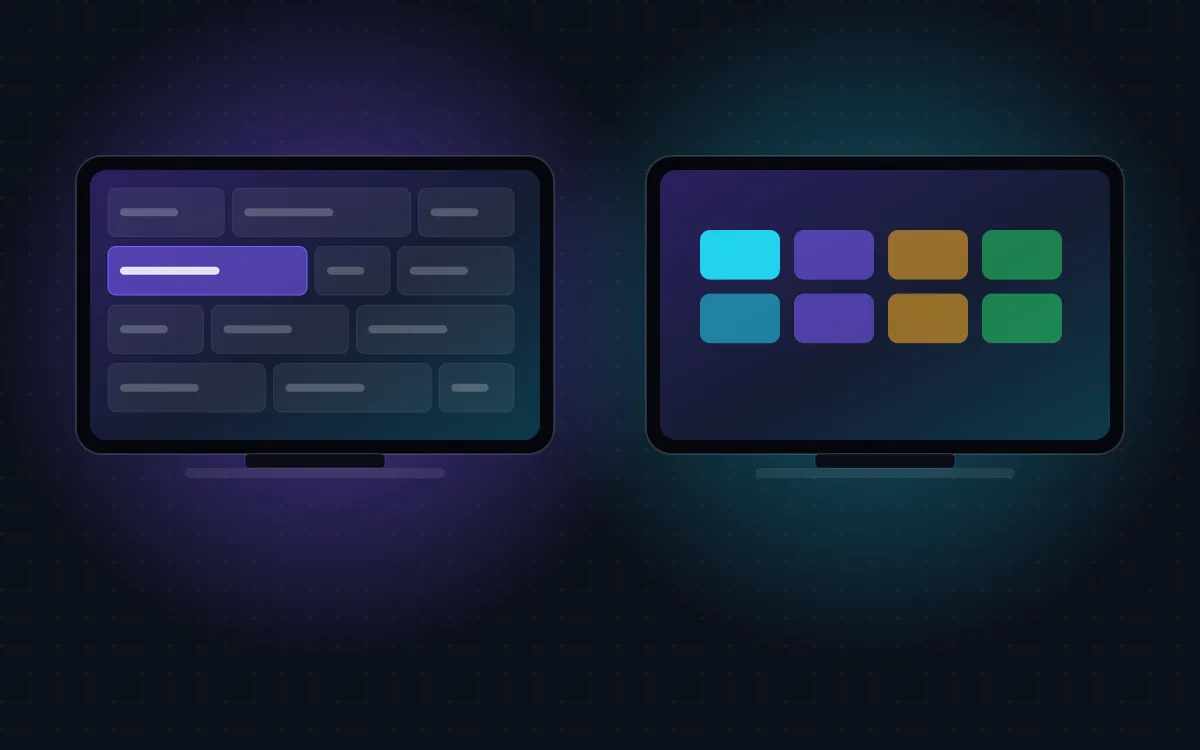
- A row of apps with “For you” and “Apps” tabs at the top means Google TV. Follow our Android TV steps.
- A Fire TV menu with Amazon branding means Fire TV. Follow our Fire TV steps.
- A grid of purple app tiles means Roku TV. Read our honest guide to IPTV on Roku.
- A Hisense home screen labeled VIDAA means VIDAA. Open the VIDAA app store, search for the player app we recommend, and send us a photo if it shows an activation code.
- Not sure? Open Settings > System > About (or Support) and look for the system name, or send us a photo of your home screen on WhatsApp.
Which System Works Best for IPTV?
In order of ease: Google TV and Fire TV models are the simplest, because their app stores have plenty of IPTV players. VIDAA works with a smaller choice of apps and sometimes needs activation. Roku TV models have very few options, so we usually suggest plugging in a stick.
If you are shopping for a new Hisense or TCL TV and IPTV matters to you, look for “Google TV” or “Fire TV” on the box.
Tips for Hisense and TCL TVs
A couple of things help every Hisense and TCL TV, whatever system they run:
- These TVs offer great value but use modest processors. Close other apps before you watch.
- Turn off motion smoothing settings for a natural picture with live TV.
- If the guide feels slow, a Fire TV Stick 4K in an HDMI port often runs faster than the built-in system.
Fixing Common Hisense and TCL Problems
I cannot find the player app
Check your system first (see the steps above). If you have VIDAA or Roku, the app may not exist for your model, and a streaming stick is the easy route.
The TV is slow to respond
Restart it from Settings rather than the remote, and uninstall apps you never use.
Still stuck? Our IPTV setup guide has more tips, or send us a photo of your screen on WhatsApp and a real person will help.